![Sendmarc-Logo-Dark.png]](https://help.sendmarc.com/hs-fs/hubfs/Sendmarc-Logo-Dark.png?height=24&name=Sendmarc-Logo-Dark.png)
Sections in the article:
Detected sub-domains will appear in the domain filter dropdown on the Email Senders reports, giving you visibility into sub-domain email activity.
Sub-domain detection and reporting is only available on selected account plans.
View Detected Sub-domain Reports
To view detected sub-domain reports, navigation to Email Senders Reports and click on the Domain filter dropdown.
|
|
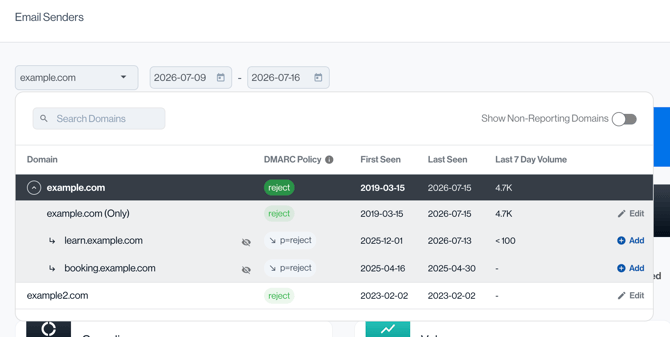
The Domain filter dropdown lists all domains in your account, with detected sub-domains grouped under their parent domain. Showing detected sub-domains allows you to investigate the sending behaviour and compliance posture of a specific sub-domain in isolation from its parent domain.
You will also see the inherited policy applied to each detected subdomain, indicated by a south-east arrow icon, showing whether it inherits the p or sp tag.
Hide a Detected Sub-domain
Not every detected sub-domain is worth acting on. You can hide detected sub-domains to keep the
Domain filter dropdown tidy:
- Click the Visibility Off icon on a detected sub-domain to hide it.
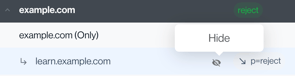
- Hidden sub-domains will be hidden for everyone on the account.
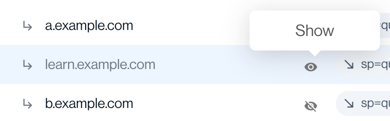
- To reveal hidden sub-domains, enable the Show Hidden Domains toggle found at the top of the Domain filter dropdown. This toggle only appears when at least one sub-domain has been hidden and it is disabled by default.

- When Show Hidden Domains toggle is enabled, you will be able to see all hidden detected sub-domains. You can unhide or show a detected sub-domain by clicking the Visibility icon.
Add a Detected Sub-domain
When a detected sub-domain needs its own configuration separate from the policy and settings inherited from its parent domain, you can add it to your domains list directly from the dropdown:
- Navigation to Email Reports in the left navigation bar.

- Click on the Domain Filter Dropdown

- In the dropdown expand the Parent Domain to reveal its list of detected sub-domains.

- Click the + Add button next to the sub-domain you would like to Add & Configure.

- A confirmation modal will appear:
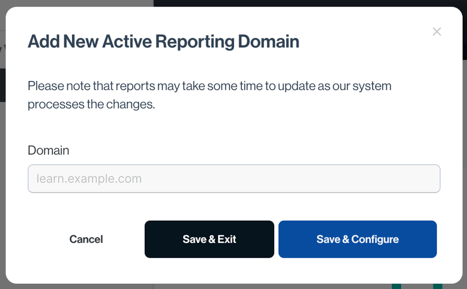
Review and choose one of:
- Save & Exit — adds the sub-domain to your domains list and returns to the current view.
- Save & Configure — adds the sub-domain and navigates directly to its domain settings.
- Once saved, the sub-domain moves from the detected list into your account's domain list and can be configured independently. It will no longer be grouped under the parent in the Domain Filter Dropdown in the Email Senders Reports.
Note: It can take up to 1 hour for reports to be moved and processed once the detected sub-domain is added to Sendmarc, do not be alarmed if you see "Awaiting Reports" immediately after adding the domain.
Need Help?
support@sendmarc.com is standing by to assist!