![Sendmarc-Logo-Dark.png]](https://help.sendmarc.com/hs-fs/hubfs/Sendmarc-Logo-Dark.png?height=24&name=Sendmarc-Logo-Dark.png)
Introduction
An Exposure Report offers a clear, comprehensive view of what's happening with an account’s domain regarding DMARC. Sendmarc structures the findings into concise, easy-to-understand sections, helping you quickly grasp your domain’s overall emailing security posture and what actions can improve its protection. Very Similar to the Sendmarc Dashboard overview.
Purpose and Aim of this Article
To offer deeper insights into Exposure Reports, expanding on what’s covered in the report as well as in the Generated Link or Email Link Guide, which can be found at the bottom right of the report (note: the Guide is not included in the downloaded document version).

What an Exposure Report typically looks like
There are 2 main ways to produce an Exposure Report for analysis
1st Create an Exposure Report manually via Domains.
Login to the Sendmarc Customer Portal > Go to the Domains section in the left-hand side navigation menu > look for the shield icon that has a magnifying glass within it on the right, with the rest of the domain icons.
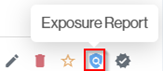
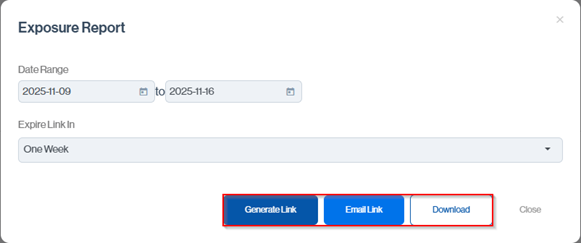
Which will give you extra options such as specifying a Data Range, Expiring Links in a certain period and options for receiving the report; Generate Link, Email Link and Download.
2nd Create an Exposure Report that sends automatically via Alerts.
Login to the Sendmarc Customer Portal > Go to the Alerts section in the left-hand side navigation menu > Click on the Add Alert button towards the top right-hand side  > look for and Select the Exposure Report Alert.

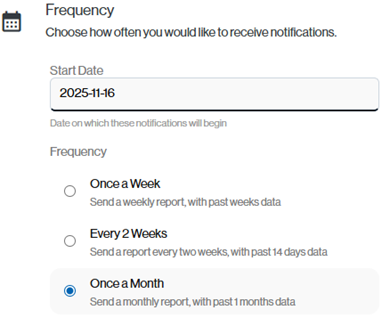
This will give you the same options as given in the 1st with the addition of a frequency selection.
Exposure Report Segments and their Unique attributes
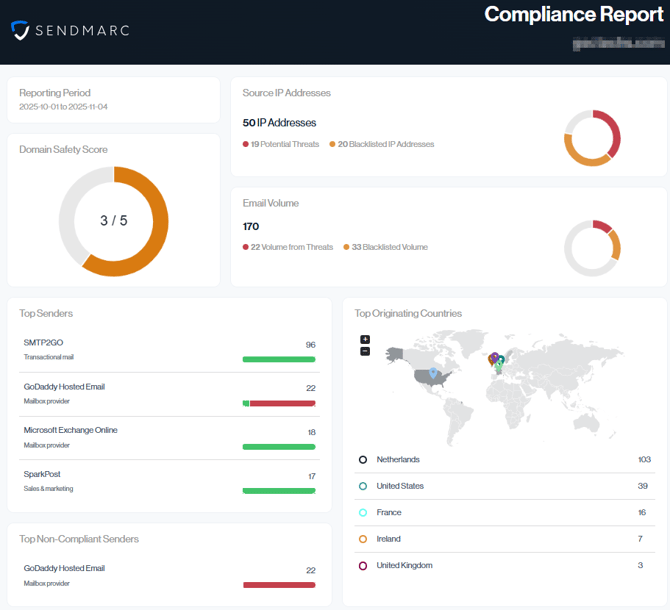
Reporting Period
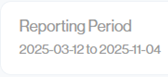
This gives you the specific dates that the report information relates to.
If you are looking to pull for other periods, this can be done manually using the 1st Create an Exposure Report manually via the Domain’s method.
Domain Safety Score
The doughnut chart provides a quick overview of the key factors that determine your domain’s protection level. Lower values indicate weaker protection, making it easier for impersonators to misuse your domain.
The different colors and meanings are as follows:
The Full Gray & Red color represents a High-Risk rating
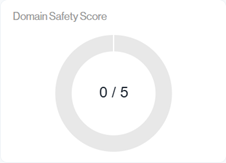
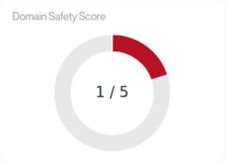
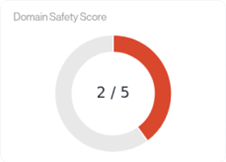
The Orange & Teal colors represents a Moderate-Risk & Moderate-Low-Risk rating
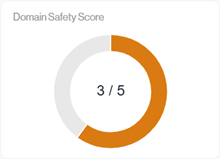
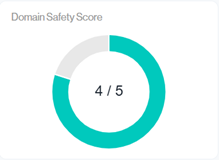
The Blue color represents a Low-Risk rating
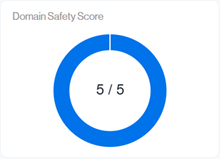
These Domain Safety Score Indicators relate back to Sendmarc’s Domain Scoring Tools Impersonation scoring (https://tools.sendmarc.com).
Source IP Addresses
The Source IP Addresses section provides a quick snapshot of the IPs sending mail on behalf of your domain. It highlights the total number of outbound IPs, how many are flagged as potential threats, and how many of those are blacklisted. Since IP reputation directly affects email deliverability, this view helps you identify risk areas at a glance
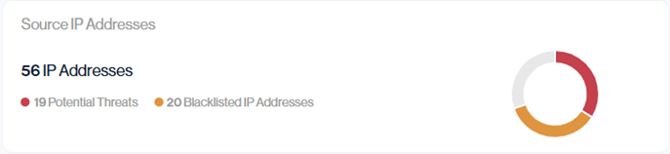
We take a closer look at the three key metrics shown in the Source IP Addresses section and explain what each one means for your domain’s security and deliverability.
IP Addresses
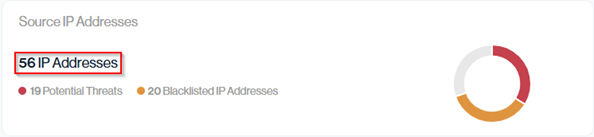
The IP Addresses total shows the number of unique IPs observed sending email for your domain. This value is taken from the Email Senders data card (shown below).
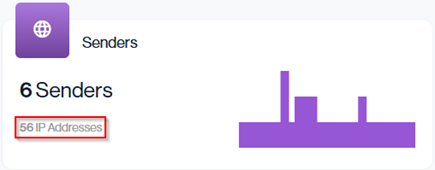
Navigation in Customer Portal: Email Senders > Compliance section > Senders data card (Top Right-hand side)> IP Addresses value
In this example, the ‘56 IP Addresses’ value represents the total number of unique IPs detected in your Email Senders. Each sender in the table may use one or more IPs (shown in the left-hand column), and the sum of those IPs equal the total displayed in the Senders IP Addresses section. This helps you quickly see how many distinct IPs are involved in sending mail for your domain across all services.
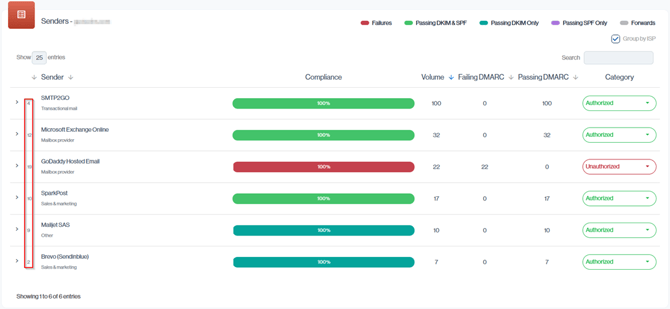
Navigation in Customer Portal: Email Senders > Compliance section > Senders > IP Addresses Column
Potential Threats

Of the total unique IPs sending on your behalf, 19 are flagged as Potential Threats. These are IPs that currently have, or previously had, a known security issue associated with them, such as being blacklisted or linked to confirmed malicious activity, according to Sendmarc’s third-party threat intelligence feeds. A higher number here indicates greater risk and should prompt review of which services use these IPs and whether they should be remediated or removed from your mail flow.
It’s relatively common for shared email platforms, such as Microsoft 365 or Google Workspace, to appear on certain blacklists from time to time. These providers operate large pools of shared IP addresses, and they typically handle blacklist remediation automatically, without requiring any action from you.
What is uncommon is seeing a dedicated IP address appear on a blacklist, because a dedicated IP is used exclusively by an organization (or a specific service that they control), any blacklisting is a strong indicator of a direct issue.
This should trigger an immediate investigation: Identify why the IP was listed, resolve the underlying cause, and submit a delisting request as soon as possible.
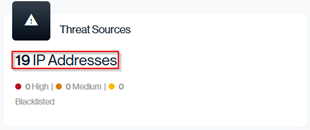
Navigation in Customer Portal: Email Senders > Threats section > Threat Sources data card (top left-hand side) > IP Addresses value
In the Threat Sources view, the total IP count indicated, reflects the combined number of IP addresses associated with each sender.
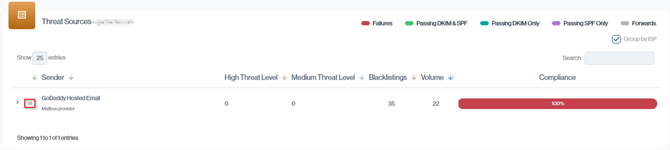
Navigation in Customer Portal: Email Senders > Threats section > Threat Sources > Senders IP column
Threat Sources refer to IP addresses or services that have actively attempted to send email traffic associated with your domain. This activity may include unauthorized or suspicious messages that could indicate phishing attempts, spoofing, or other forms of domain misuse.
Blacklistings indicate IP addresses that external threat intelligence providers have already flagged for malicious behavior. These behaviors typically include spam distribution, phishing, malware dissemination, or other forms of abusive email activity, which is why they appear under the Potential Threats category in the Exposure Report.
An Attack Source Mail threat type indicates that the sending IP address has been flagged by our third-party threat intelligence provider as a verified origin of malicious email activity. These IPs have a documented history of distributing phishing, spam, or attack-related mail, which is why they are automatically classified as High Risk. Sendmarc will send you an alert if your Threat Level Increased notification is setup.

Navigation in Customer Portal: Email Senders > Threat section > Threat Sources > Threat Types column once Sender has been expanded.
Blacklisted IP Addresses

The Blacklisted IP Addresses value shows how many of the IPs used by your authorized senders are currently listed on one or more public block-lists.
In this example, 20 of the 56 IPs (Almost 36%) sending mail from your domain are blacklisted; because these IPs directly affect your sending reputation, a higher number here signals an increased risk of emails experiencing deliverability issues and should prompt a review of which services use these IPs.
The total number of authorized IP addresses is split into two categories: Clean and Blacklisted. In this example, 37 IPs are in use, 17 are clean, while 20 are blacklisted (54%).
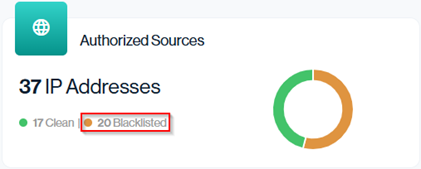
Navigation in Customer Portal: Email Senders > Reputation section > Authorized Sources data card (Top Left-hand side Blacklisted value)
This breakdown helps you easily see how much of your authorized sending infrastructure is at risk of experiencing deliverability or reputation issues.
The Blacklisted Sources view gives you a detailed breakdown of which authorized senders are using blacklisted IPs, how many IPs each sender uses, and their sending volume.
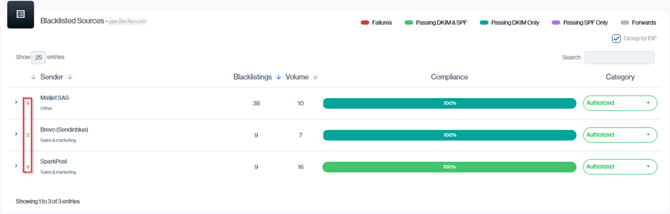
Navigation in Customer Portal: Email Senders > Reputation section > Blacklisted Sources > Senders IP column
Email Volume
The Email Volume metrics card provides detailed visibility into sending activity and how much of that volume came from risky sources.
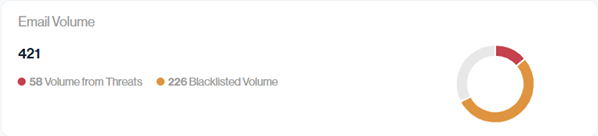
In this example, 421 emails were sent, of which 58 (About 14%) were from IPs flagged as threats and 226 (About 54%) were from blacklisted IPs.
This view helps you understand the impact of problem IPs and their related volumes.
Note: A single IP address can transmit multiple email messages and have numerous blacklistings associated to it.
Email Volume
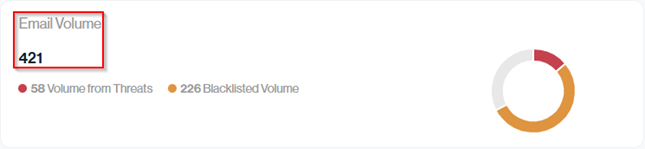
The Email Volume value shows the total number of emails sent by all your senders over the selected time period.
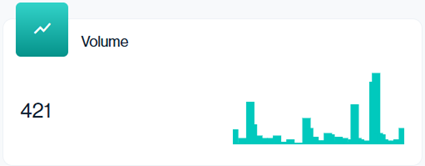
Navigation in Customer Portal: Email Senders > Compliance section > Volume data card (Top middle value)
In this example, 421 messages were sent. The mini graph alongside it visualizes how that volume was distributed over time, helping you spot spikes or unusual sending patterns.
The overall email traffic is broken down by individual sending services. Each row represents a specific sender and its infrastructure, with the Volume column showing how many emails that sender generated in the selected period. By comparing these per-sender volumes to the overall Email Volume total, you can identify which platforms are responsible for most of your traffic, spot unexpected spikes, and isolate specific senders for deeper investigation.
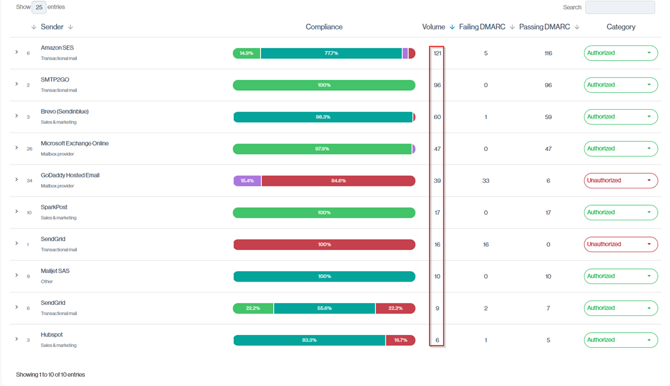
Navigation in Customer Portal: Email Senders > Compliance section > Email Sender > Volume Column.
Volume from Threats
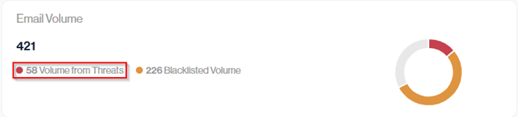
Volume from Threats represents the number of unauthorized emails actually sent from known malicious or blacklisted IP addresses, it also includes any Attack Source Mail, regardless of the severity level. This metric helps you understand how much of your total observed email traffic originates from dangerous sources, giving insight into active threat activity targeting your domain.
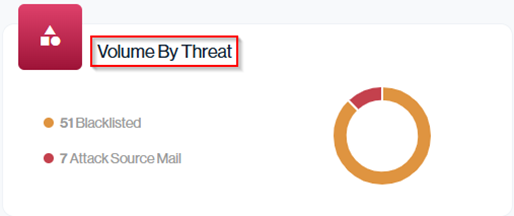
Navigation in Customer Portal: Email Senders > Threat section > Volume By Threat data card (Top Right-hand side)
These emails form part of your overall Threat Sources Email Volume and can be traced back to the originating senders or IP addresses for deeper analysis and investigation.
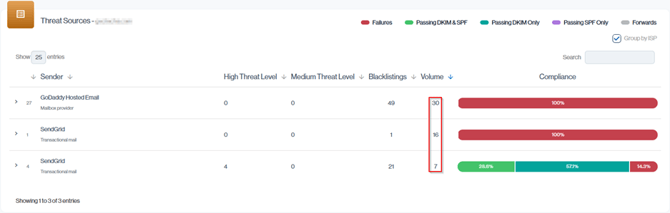
Navigation in Customer Portal: Email Senders > Threat section > Threat Sources > Sender Volume Column.
***Why the Threat Source Volumes add up to 53 instead of the 58 as reported under Volume by Threats.
In certain cases, the Volume by Threats metric includes additional email traffic that does not appear in the Threat Sources table. This happens when unauthorized emails pass SPF or DKIM, but the sending IP is blacklisted.
These messages are still counted as threats as they should be. However, this specific volume is displayed only in the Compliance Email Senders section and is not reflected in the Reputation or Threats sections.
This certain case can occur, for example, when:
Email traffic originating from legacy or decommissioned infrastructure that previously passed authentication but is now failing DMARC and has since been switched from an Authorized to an Unauthorized Email Sender.
This creates a midpoint or transitional period between Authorized and Unauthorized Email Sender Volumes.
A practical example of this scenario can be seen with GoDaddy.

Of the 39 emails attributed to this source, 6 passed SPF authentication.
Among those 6, 5 emails were sent from blacklisted IP addresses, which is why they are included in the overall Volume by Threats total.
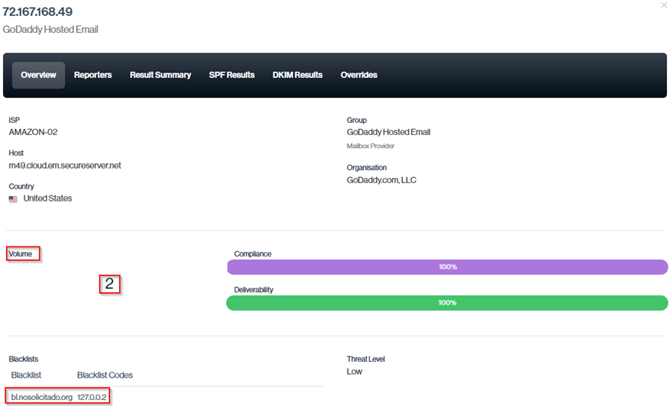
Navigation in Customer Portal: Email Senders > Compliance section > Expand the specific Email Sender > Click on IP address > Overview > Blacklists
Blacklisted Volume
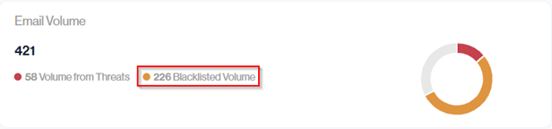
The Blacklisted Volume value under Email Volume shows how many emails from your approved senders were sent from blacklisted IP addresses.
In this example, 226 of the 421 authorized emails came from IPs on blacklists. This means that even though the sources are authorized, their poor IP reputation can still negatively affect your deliverability and should be reviewed.
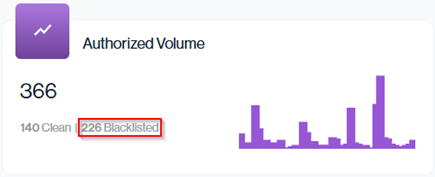
Navigation in Customer Portal: Email Senders > Reputation section > Authorized Volume data card Blacklisted value (Top Middle)
You can reconcile this Blacklisted number by adding up the values in the Volume column within the Blacklisted Sources view, where each row shows how many blacklisted emails were sent by a specific platform.
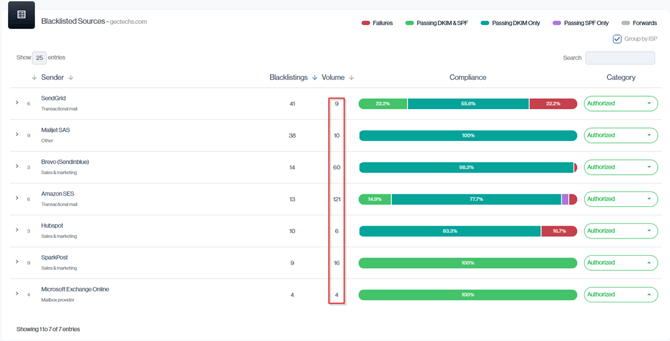
Navigation in Customer Portal: Email Senders > Reputation section > Blacklisted Sources > Senders Volume Column
Comparing Volume from Threats and Blacklisted Volume against your Total Email Volume provides a clear view of how much risk is coming from authorized versus unauthorized email traffic. This single comparison helps you quickly identify where the real threats to your domain originate
Reputation vs Threats Email Senders Section
The key difference between Sender Email Reputation and Threats is in which senders they include.
Sender Email Reputation focuses only on your authorized email senders, showing how reputable and deliverable the traffic is. The Threats section covers all other senders; including Forwarders, Unauthorized, Suspicious and Categorized sources, highlighting activity that may pose a risk.
Accurately categorizing each Email Sender is therefore critical: it ensures your reputation reporting is reliable and that genuine threats are not hidden among categorized traffic.
Top Senders
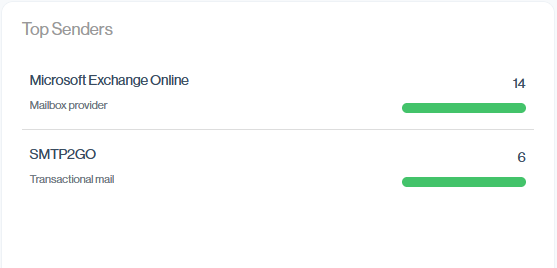
Top Senders lists your authorized email sources. They’re ranked from highest to lowest sending volume, making it easy to see which platforms are responsible for most of your legitimate mail traffic.
You can drill down into these Top Senders in the Email Senders view, where each source is shown with their full volume, DMARC pass/fail, and compliance details. This lets you validate why they rank as top senders and investigate any issues in more depth.
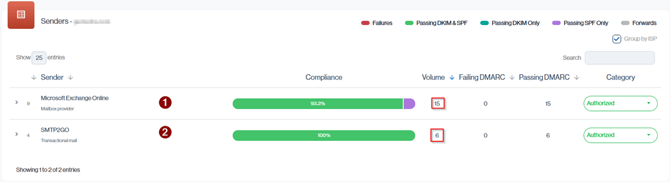
Navigation in Customer Portal: Email Senders > Compliance section > Senders Volume Column
Top Non-Compliant Senders
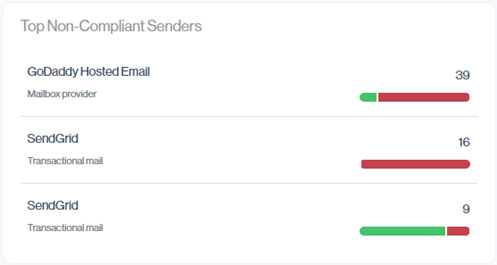
This view highlights your top non-compliant senders (No matter the categorization), those generating the most email that fails DMARC. Use it to quickly spot which email source still needs configuration or if there was a spike in Unauthorized spoofing.
For more detail on your non-compliant senders, scroll down the Email Senders view. Here you can see each sender’s full DMARC breakdown and volume.
In this example, the three highlighted volume figures correspond directly to the senders shown in the Top Non-Compliant Senders panel, allowing you to confirm their impact and which ones to fix first.
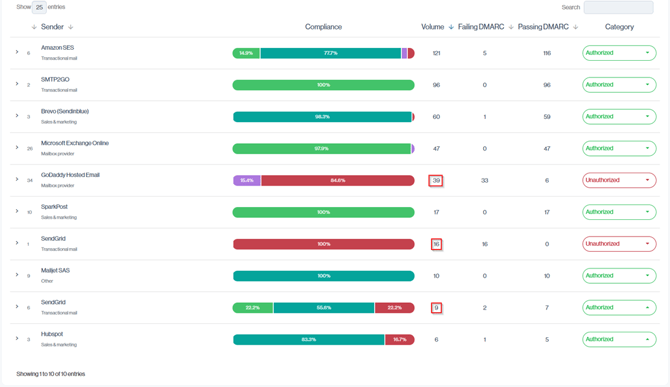
Navigation in Customer Portal: Email Senders > Compliance section > Senders Volume Column (Based on top failures)
Top Originating Countries
The Top Originating Countries panel shows where your email traffic is coming from, combining a world map with a ranked list of sending countries. This makes it easy to confirm that mail is originating from regions you expect (for regulatory or data-residency requirements) and to quickly spot unusual or high-risk locations that may warrant further investigation.
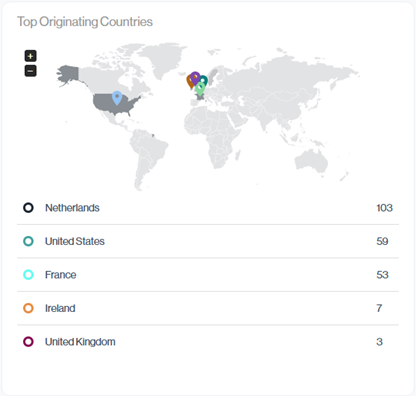
Navigation in Customer Portal: Email Senders > Compliance section > Source Counties data card (Bottom Right-hand side)
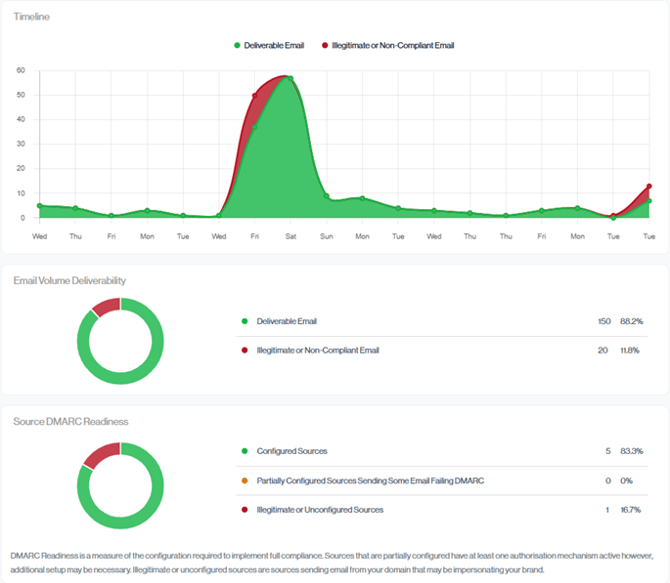
Timeline
The Timeline chart compares DMARC passing (Deliverable) and DMARC failing (illegitimate or non-compliant) email for the selected date range, broken down by day. Passing mail is shown in green and failures in red, overlaid on the same graph so you can clearly see when bad traffic increases alongside legitimate mail. Use the peaks and dips to spot sending trends, unusual spikes in failures, and days where non-compliant traffic may require deeper investigation.
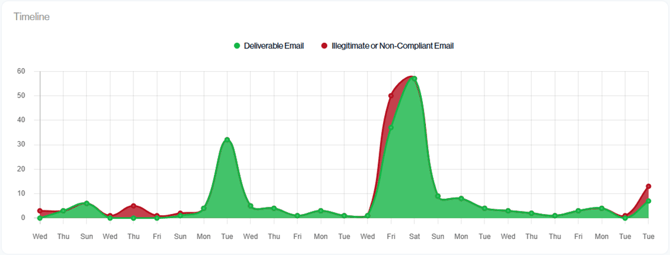
Navigation in Customer Portal: Email Senders > Compliance section > Timeline data card (Bottom Left-hand side)
Email Volume Deliverability

The Email Volume Deliverability doughnut chart compares deliverable email (green) with illegitimate or non-compliant email (red) for the selected period.
Ideally, most of the chart should be green, indicating that the majority of your traffic is DMARC compliant and likely to be delivered. The red portion shows how much of your volume is failing and may be rejected or treated as suspicious. Unauthorized or misconfigured sources can fluctuate these day to day readings, this view is most meaningful once DMARC is fully deployed and your policy is set to p=reject.
The Exposure Report has now touched on a variety of important areas
The next three sections outline how prepared your email infrastructure is, how much exposure or risk currently exists, and the recommended steps you can take to strengthen deliverability. Together, they help you improve emailing performance while maintaining a high DMARC compliance rate.
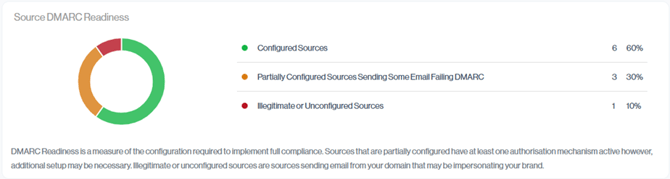
Source DMARC Readiness
Configured Sources
Out of 10 email sources, 6 are correctly configured and passing DMARC for the greater part of their traffic. This means the bulk of your sending infrastructure is healthy.

Configured Sources are senders whose email is correctly authenticated, with the majority of their volume passing DMARC (Above 90%) through valid DKIM and or SPF alignment. In the Senders view, these appear as rows where most of the compliance bar is green/teal/purple, indicating that their messages are properly configured.
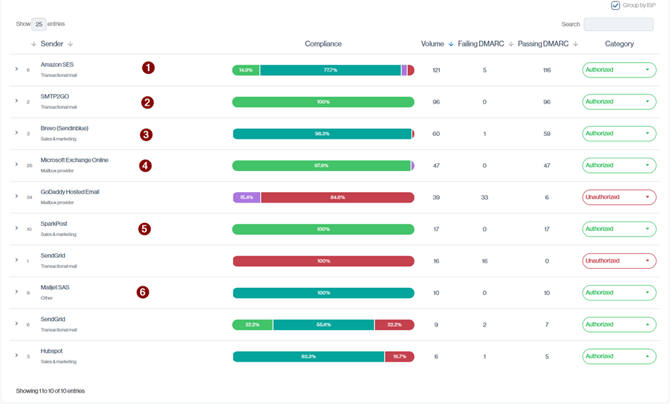
Navigation in Customer Portal: Email Senders > Compliance section > All sub-section
Partially Configured Sources Some Email Failing DMARC

Partially Configured Sources are email senders that are passing at least one authentication mechanism, such as SPF or DKIM, at the time of reporting, but do not yet meet the requirements to be classified as a fully Configured Source, because of this, their DMARC compliance sits somewhere in the middle: not fully failing, but not consistently passing either.
For example, SPF may pass while DKIM fails, or vice versa. As a result, some of their email volume passes DMARC while other messages still fail. This mixed outcome indicates that the sender needs additional configuration or alignment work to achieve full DMARC compliance when sending from that emailing infrastructure.
For each partially configured source, you should therefore:
- Confirm whether the platform technically supports both SPF and DKIM alignment.
- If it does, treat this as a configuration gap to fix.
- If it doesn’t (DKIM only by design), you can accept it as expected behavior and not treat it as a misconfigured or risky source.
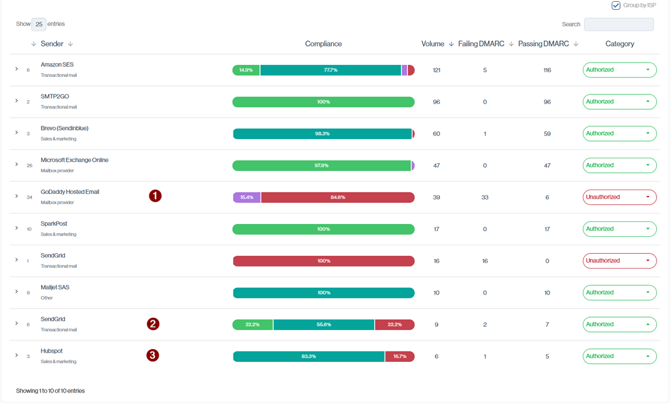
Navigation in Customer Portal: Email Senders > Compliance section > All sub-section
Illegitimate or Unconfigured Sources

An Illegitimate or Unconfigured Source is a sender with no valid DMARC authentications in place, the email fails SPF or DKIM and alignment. Emails from these sources is considered suspicious and should be treated as unauthorized until it is properly configured. You can either update the source to meet authentication requirements or allow it to continue to fail, which should help deter that sender from using your domain.
Consider the below illustration:
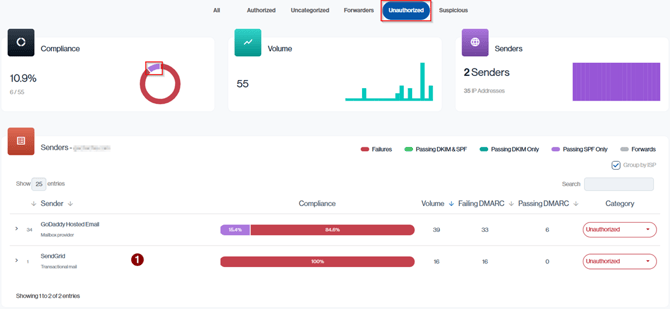
Navigation in Customer Portal: Email Senders > Compliance section > Unauthorized sub-section
Even though GoDaddy Hosted Email is categorized as Unauthorized, it isn’t counted as an Illegitimate or Unconfigured Source because, within the report’s date range, it sent a small number of messages that did pass at least one authentication check (SPF or DKIM and aligned).
By contrast, the SendGrid sender has no successfully authenticated mail in this period, all of its messages fail DMARC, so it is the sender that appears in the Illegitimate or Unconfigured Sources count.
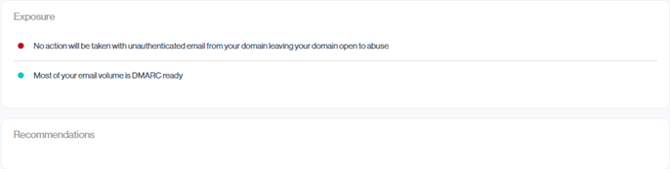
Exposure
The Exposure section provides a concise summary of key risk points in your email infrastructure.
Each line highlights a specific area of vulnerability and acts as a call to action, prompting you to investigate why that risk exists.
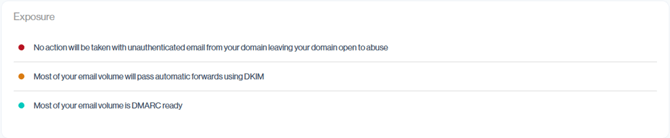
Each email environment is unique, and what counts as “DMARC ready” can vary between organizations. Once you’ve addressed the identified issues for your setup, the Exposure section should simplify to a positive status like the example below, confirming that your top senders are DMARC ready.

Recommendations

The Recommendations section provides practical guidance on how to strengthen your DMARC security posture. Each suggestion should be reviewed carefully in the context of your unique environment before making changes.
If you’re unsure about any recommendation or its impact, contact Sendmarc Support at support@sendmarc.com for assistance.